
Make a game with Karty
Create a project, choose a 2D or 3D scene, and add an interaction you can play.
Start with a playable game
Install the Karty CLI, then run:
karty new my-game
cd my-game
karty dev
The terminal wizard offers blank, 2d, fps, isometric, and ui, plus optional Git initialization and GitHub Actions. Use --yes --template 2d for scripts. Use --no-template for just the base folders and an empty entry point. The 2D, first-person and isometric starters include their controller plugins. The first-person starter provides walking, physics and touch controls. Blank and UI projects add controls only when needed.
Open the address printed by the preview. Change a color or a movement speed in src/main.go, save, and try it again. The first setup downloads tools; later builds reuse them.
Keep karty.toml, your Go source, and source assets in Git. The CLI recreates .karty/ and dist/. Use your project's .karty/docs/ reference for API names and supported features.
New projects also include the Karty game development agent skill in .agents/skills/karty-game/. Agents that support project skills can discover it there; invoke $karty-game when your agent supports named skills. It explains asset and level organization, Go and KartUI capabilities, commands and validation. Keep this guidance with your game's source if your team uses it. It is copied from the CLI at creation and is not overwritten by builds or updates; the game's generated .karty/docs/ remains authoritative for its API. For an existing game, copy the repository's skills/karty-game/ directory into its .agents/skills/ directory after reviewing any existing guidance. Review future skill updates deliberately; there is no automatic skill update command.
Make one small game rule work before adding more art: collect an item, reach a goal, or restart after losing. For a 3D game, choose the first-person or isometric starter, then extend its room using the matching guide path. Hangar shows first-person exploration and connected rooms in a larger world.
Build one room
A level has a manifest, world geometry, and its own textures. Create levels/room/, add a tileable surface.png, and save this as level.toml:
[level]
name = "levels.room"
kind = "world"

[world]
source = "world.yaml"

[[textures]]
name = "surface"
source = "surface.png"
profile = "environment"
Save this as world.yaml. X/Y describe the floor plan; Z is height. These coordinates make an eight-metre square room with a three-metre ceiling.
version: 19
rooms:
  - id: room
    rect: {width: 8, depth: 8, material: surface}
    floor: {c: 0}
    ceiling: {c: 3}
    floor_material: surface
    ceiling_material: surface
The build expands rect into four counterclockwise edges named south, east, north and west. Use those names for connections. For an irregular room or individual wall settings, use an explicit boundary instead of rect. Run karty schema for editor suggestions, or karty schema --check to check the world before processing assets.
Replace src/main.go with this room viewer. Change the import if your project has a different name. The camera starts at (2, 2, 1.7); the text shows loading errors above the scene. The CLI generates assets.LevelRoom from the manifest's logical name; the callback supplied to LoadLevel receives only that load's ready result.
package main

import (
	"example.com/my-game/.karty/assets"
	"example.com/my-game/.karty/engine"
)

type Game struct {
	engine.Game
	camera *engine.Camera3D
	label  *engine.Text2D
}

//go:wasmexport karty_register
func main() {
	game := &Game{}
	engine.Run(engine.Hooks{
		OnStart: func() {
			game.label = game.NewText2D("Loading room...", engine.NewVec2(24, 24))
			game.LoadLevel(assets.LevelRoom, func(event engine.LevelReady) {
				game.camera = game.NewCamera3D(event.Handle, engine.Camera3DSettings{
					Projection: engine.CameraProjectionPerspective, Output: engine.CameraOutputFull,
					Position: engine.NewVec3(2, 2, 1.7), VerticalFOV: 1.05,
					NearClip: 0.05, FarClip: 100, OrthoHeight: 10,
					ViewportWidth: 960, ViewportHeight: 540,
				})
				game.camera.SetLayer(-1)
				game.label.SetText("")
			})
		},
		OnLevelFailed: func(event engine.LevelFailed) {
			game.label.SetText(event.Diagnostic)
		},
	})
}
Run karty dev to view the room. Match the viewport to your karty.toml resolution if you change it. This camera stays still. Add first-person controls to walk around, or an isometric camera to view the room from above.
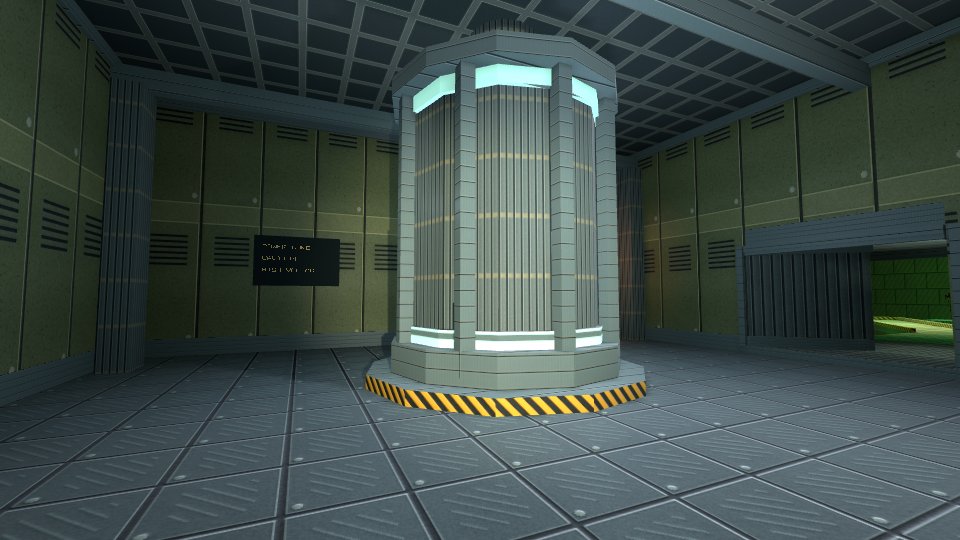
Add a second room only after you can explore the first. A connection names an edge in each room and opens a portal between them; see Hangar for complete connections, including a non-Euclidean portal loop.
Give surfaces a material
Use a small tileable image first. The texture's name is the material name used by floors, ceilings, and boundary edges. Texture paths are relative to level.toml.
Add this at the top level of world.yaml to repeat the image every two metres:
uv:
  mode: triplanar
  anchor: world
  scale: {x: 2, y: 2}
Scale is metres per repeat: a larger value makes the pattern larger. Set a room's wall_uv, floor_uv, or ceiling_uv to change only those surfaces. World anchoring keeps repeats aligned when you place prefabs.
Use mode: planar for a flat surface that needs one texture projection, including a sloped floor or ceiling. For example, floor_uv: {mode: planar} keeps the inherited scale, offset and rotation while projecting in world XY. Solids support the same choice through top_uv and bottom_uv. This avoids blended triplanar sampling on slopes, but changes the pattern and normal-map response: compare the result before replacing an intentional triplanar blend. The compiler preserves explicit triplanar mapping.
Materialize generates height, normal, and ambient occlusion maps for world surfaces, along with metallic and smoothness maps. Add a preset immediately after the texture entry in level.toml:
[textures.materialize]
preset = "concrete"
Run karty build --target web to generate and cache the maps. The CLI makes world textures seamless automatically. These controls apply to world surfaces; sprite textures keep their original image processing.
Choose a preset
Use these exact lowercase names:
defaultbalances surface detail. This is the default when no preset is set.autochooses a preset by analysing the source image.skinproduces smooth, non-metallic skin.flooremphasises height and ambient occlusion for ground surfaces.metalstrengthens metallic detail and sharp edges.fabricproduces soft, matte cloth.woodpreserves moderate grain detail.stoneproduces rough rock with deep ambient occlusion.concreteproduces rough concrete.leatherproduces pebbled leather with some smoothness.marbleproduces polished, veined stone.sandproduces fine, rough grain.foliagesuits leaves and grass with little metallic detail.plasterkeeps surfaces flat with soft normals.asphaltproduces rough surfaces with dense edge detail.brickemphasises sharp edges and rough surfaces.iceproduces smooth surfaces with subtle detail.snowproduces soft, diffuse surfaces.lavaproduces partly metallic, molten surface detail.waterproduces smooth water surface detail.
Presets change generated maps. They do not add liquid motion or light emission. Start with their defaults. Use normal_strength, height_contrast, metallic_scale, or ao_depth_scale only when the result needs adjustment. The separate textures.material_strengths settings control how strongly the game displays those maps. Your generated .karty/docs/assets.md lists the overrides and limits for your project.
Check the result at player height. A material that looks good close up may repeat too obviously across a large wall. The Hangar shows wall bands, secondary weathering, and small sprite decals.
Reuse a static object
A prefab groups geometry so you can place it more than once. Add this at the top level of the room's world file:
prefabs:
  - id: crate
    solids:
      - id: body
        footprint: [{x: 0, y: 0}, {x: 1, y: 0}, {x: 1, y: 1}, {x: 0, y: 1}]
        bottom: {c: 0}
        top: {c: 1}
        side_material: surface
        top_material: surface
        bottom_material: surface
        collision: true
instances:
  - id: crate-a
    prefab: crate
    transform:
      translation: {x: 4, y: 4, z: 0}
      yaw_degrees: 20
Solid footprints must be convex and counterclockwise. Split an L-shaped object into several solids. Use room geometry for passages and platforms: a solid's collision blocks movement, but does not make its top walkable.
An instance can translate, rotate, uniformly scale, or substitute materials. Its expanded object keeps a stable name such as crate-a/body. Prefabs can also contain rooms and sprites. Light positions remain global; placing a prefab does not place or move lights for it.
Keep static objects static. Visual animation does not move collision or gameplay query positions. For a door or moving platform, check the engine's supported behavior before designing the interaction.
Light the scene, then bake
Add a warm lamp at the top level of world.yaml:
lighting:
  version: 1
  ambient: {x: 0.05, y: 0.05, z: 0.06}
  lights:
    - id: room-lamp
      position: {x: 4, y: 4, z: 2.5}
      color: {x: 1, y: 0.75, z: 0.45}
      radius: 6
Start with one lamp and low ambient light. Keep its radius near the space it needs to illuminate. Add lights where they help players read an entrance, obstacle, or goal.
Bake steady lights so they do not need live lighting each frame. Add this to level.toml:
[lightmap]
enabled = true
offline = true
density = 4
page_size = 512
bake_samples = 16
bake_bounces = 1
For this room, run karty render bake, then karty dev. Rebake after changing geometry, textures, UVs, or baked lights. Restart an existing preview after baking. Begin at low density; increase it only when shadow detail needs it.
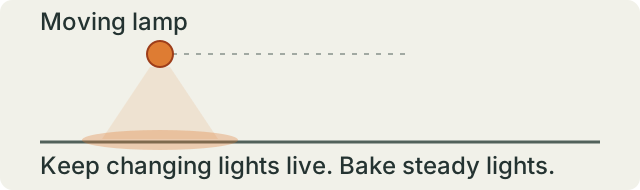
Eligible steady sources bake automatically. Moving lights and lights linked to a changing emission pulse stay live. Keep the live set small; the current live authored point-light table holds at most 50. A glowing material does not light its surroundings by itself; add a light for that effect.
Larger levels can opt into chunks. For chunked levels, karty build produces missing bakes; karty dev previews with a matching bake or live lighting. See Hangar for a larger level with baked lighting after the single-room version works.
Turn movement into an interaction
Use typed hooks for startup, frames, input, and level results. Match each level result to the request that created it. Handle OnLevelFailed with a message the player can read.
These snippets extend a controller with a loaded camera. Add these fields to your Game:
status string
nearGoal, won bool
After creating the camera, check its starting position and subscribe to later accepted poses. Registration alone does not call the callback.
updateGoal := func(position engine.Vec3) {
    dx, dy := position.X-6, position.Y-6
    game.nearGoal = dx*dx+dy*dy < 1
}
updateGoal(game.camera.Settings().Position)
_, err := game.WatchPose(game.camera.Ref(), func(pose engine.Transform3D) {
    // The host has applied collision and portal movement.
    updateGoal(pose.Position)
})
if err != nil {
    game.status = err.Error()
}
Propose movement from camera.Settings(), which the engine keeps synchronized automatically with the accepted pose. Do not accumulate a separate guessed player position.
The position check defines a one-metre trigger around (6, 6). Call this method from your existing OnKeyDown handler to finish when the player presses E there. Keep the movement handler in that hook too.
func (game *Game) onKeyDown(key engine.Key) {
    if key == engine.KeyE && game.nearGoal && !game.won {
        game.won = true
        game.status = "You made it!"
    }
}
Draw status in your HUD; invalidate it when the value changes if using KartUI. Reset won when starting again. Reset held controls in OnInputReset so losing focus does not leave the player moving.
Tags identify actors; they do not automatically create proximity events. Query actors after the level is ready, and keep trigger checks in your game. For longer scripted interactions, use typed actions and StartAuthoredSequence; start with a direct Go handler first.
Add sound and video
Put a short WAV effect in assets/sounds/. The CLI converts it to QOA and generates a typed sound ID. Declare music and video in karty.toml:
[[assets.sound]]
name = "ui.click"
source = "assets/sounds/click.wav"

[[assets.sound]]
name = "door.open"
source = "assets/sounds/door/open.wav"

[assets.sound.transform]
channels = "mono"

[[assets.sound]]
name = "reactor.hum"
source = "assets/sounds/reactor/hum.wav"

[assets.sound.transform]
channels = "mono"

[[assets.sound]]
name = "crate.scrape"
source = "assets/sounds/crate/scrape.wav"

[assets.sound.transform]
channels = "mono"

[[assets.music]]
name = "theme"
source = "assets/music/theme.wav"
profile = "music"

[[assets.video]]
name = "intro"
source = "assets/videos/intro.mpg"
Add the generated assets import, then call these methods from a player button or input handler:
func (game *Game) startMedia() {
    game.PlaySound(assets.SoundUiClick)
    game.PlayMusic(assets.MusicTheme, engine.StreamOptions{Loop: true, CrossfadeMS: 500})
    game.PlayVideo(assets.VideoIntro, 300, 130, 360, 180)
}

func (game *Game) stopMedia() {
    game.StopMusic(500)
    game.StopVideo()
}
For my-game, the assets import is example.com/my-game/.karty/assets. Use the generated names in .karty/assets/. Play the click once per action, and start music once when entering a screen or level.
Choose how a sound reaches the player
Use PlaySound for centered interface feedback. Use PlaySoundFrom for a short effect that follows an object, such as a door opening. For a humming reactor or a moving crate's scraping loop, use a sound emitter. Music and environment streams provide a soundtrack or broad ambience; they have no source position.
Spatial playback changes volume with distance and pans between the left and right speakers. Use mono WAV clips so the host can place them in the stereo field. The channels = "mono" transforms above downmix stereo recordings during the build. Keep emitter loops short: they use decoded sound assets, rather than streaming music. Sound assets are limited to 30 seconds and 6 MiB of decoded PCM per clip.
Set the listener and update its direction
For a world game, make the camera the audio receiver. Add math to your imports and this method to the room viewer:
func (game *Game) updateAudioReceiver() {
    if game.camera == nil { return }
    yaw := float64(game.camera.Settings().Yaw)
    game.SetAudioListener(game.camera.Ref(), engine.AudioListenerOptions{
        Right: engine.NewVec2(float32(math.Cos(yaw)), -float32(math.Sin(yaw))),
    })
}
Call game.updateAudioReceiver() after camera creation in the level's ready callback, and from your existing OnUpdate after movement and turning. Set it again when replacing the camera. The receiver follows the camera's world position; its output rectangle on screen does not change where the player hears from.
Right is the world direction of the right speaker. A yaw of zero faces positive Y, so the right direction is (1, 0). The host does not derive this vector from camera yaw: update it as the player turns, or panning will keep the old direction. Camera pitch does not change this horizontal listener basis. For a 2D game, use the player entity as receiver and (1, 0) when positive X should always sound to the right. ClearAudioListener() silences spatial playback until another receiver is set.
Play a positioned one-shot
Pass the existing door entity or resolved engine.EntityRef when the door opens. It must be a live audio entity:
func (game *Game) playDoorSound(door engine.EntityRef) {
    game.PlaySoundFrom(assets.SoundDoorOpen, door, engine.SpatialSoundOptions{
        Volume: 0.8, NearDistance: 1, FarDistance: 12,
    })
}
Call this once per opening, rather than every update. The voice follows the door until the clip ends. NearDistance is the range with no distance reduction; volume fades between near and far, and reaches silence at FarDistance. Use the same units as the entity positions: metres for the world guides, canvas coordinates for 2D entities. Set volume explicitly; zero is silent. Use finite values, volume in [0, 4], a nonnegative near distance, and a far distance greater than near.
PlaySoundFrom uses XY distance. Z height, walls and doors do not obstruct this one-shot API. Use an emitter with Loop: false when a short effect needs XYZ distance or collision obstruction.
Place a looping sound in the world
Create this emitter once from the level's ready callback, using event.Handle for the mounted level. See .karty/docs/audio-emitters.md for the complete options:
func (game *Game) startReactorSound(level engine.LevelHandle) *engine.SoundEmitter {
    return game.NewSoundEmitter(level, assets.SoundReactorHum,
        engine.NewVec3(6, 6, 1.5), engine.SoundEmitterOptions{
            Volume: 0.6, NearDistance: 2, FarDistance: 16,
            Loop: true, Occlusion: true,
        })
}
Keep the returned handle in Game so you can call SetPosition, SetOptions or Stop. Create it once; creating it every frame starts overlapping voices. Emitters measure XYZ distance, so a source on another floor becomes quieter. They also provide a gentle volume reduction behind the listener. The receiver and emitter must belong to the same mounted level to be audible.
Occlusion: true makes loaded collision geometry muffle the direct path to the listener. Walls and doors need collision to block sound; non-collidable props do not. Place the source outside solid geometry. Sound does not travel around corners, and there is no room reverb or acoustic portal transformation.
For a moving object, attach the sound at creation. Pass a live crate entity or a resolved engine.EntityRef belonging to the same mounted level:
func (game *Game) startCrateSound(level engine.LevelHandle, crate engine.EntityRef) *engine.SoundEmitter {
    return game.NewAttachedSoundEmitter(level, assets.SoundCrateScrape, crate,
        engine.NewVec3(0, 0, 0.3), engine.SoundEmitterOptions{
            Volume: 0.5, NearDistance: 0.5, FarDistance: 9,
            Loop: true, Occlusion: true,
        })
}
The offset uses world axes and follows the source; it does not rotate with the crate. Start the scraping loop when movement begins and stop it when movement ends. Setters preserve playback rather than restarting the clip. SetOptions replaces the options: include the original Loop value, because loop mode cannot change after creation. A stopped handle cannot restart; create a new one.
Level unloading or source destruction stops an emitter. Stop() is also safe to call repeatedly or on a nil handle. Invalid creation arguments return nil; a non-nil handle does not guarantee admission when the host voice budget is full. There are at most 16 persistent emitters within the shared 32-voice sound budget. Keep handles and sound IDs out of save data. The Hangar sample uses reactor hums and attached crate scraping loops.
Check playback and package media
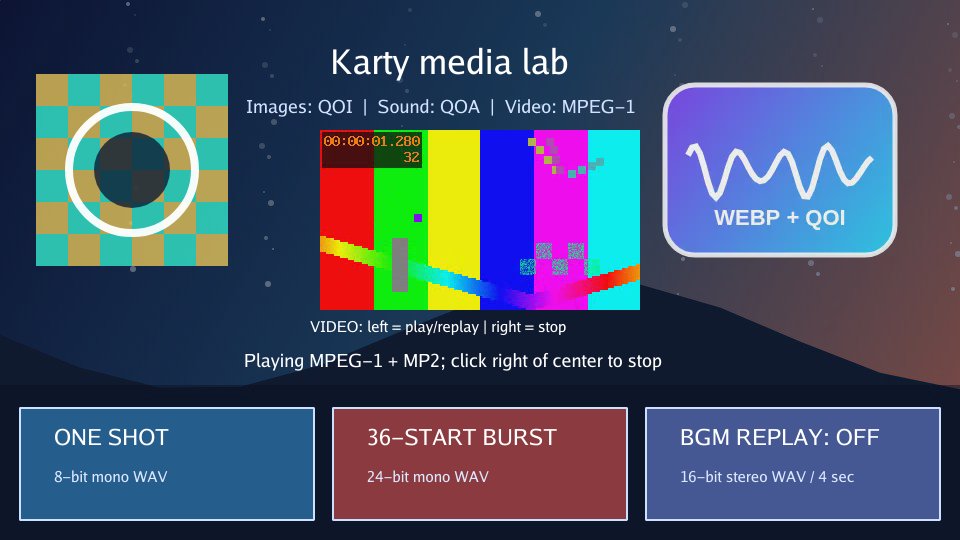
Browser audio needs player input before it can play. Video sources must already be MPEG-1 in an .mpg container, optionally with MP2 audio. The CLI does not convert MP4. One video plays at a time; pause, seeking, and video looping are not supported. The four position values set its top-left and display size.
Keep the built content/ folder when sharing music or video. Use Media lab to check playback and overlapping effects.
For a spatial check, click the preview, walk toward and away from a source, then turn with the source beside you. Check that distance changes volume and turning changes the stereo balance. Test an occluded emitter behind a collidable wall. If it is silent, check the receiver, generated sound ID, mounted level, explicit volume and far distance, then look for voice-admission errors in host diagnostics.
Make menus and a pause screen
Use KartUI for menus, HUDs, and overlays in 2D, first-person, or isometric games.
Keep screen state in Go and screen structure in .kui files. The CLI discovers components under ui/, shared layouts under ui/layouts/, and a theme at ui/theme.toml.
Save this shared frame as ui/layouts/screen-frame.kui:
<template>
  <panel modal="true" class="screen">
    <panel class="card"><slot/></panel>
  </panel>
</template>

<style>
.screen
  height: 100%
  flex-grow: 1
  align: center
  justify: center
  background: theme.colors.surface
.card
  padding: 24
  gap: 12
  max-width: 420
  flex-grow: 1
</style>
Save the menu as ui/views/menu.kui. The filename gives it the generated name ui.Menu:
<template>
  <ScreenFrame>
    <label>My game</label>
    <button onClick={ onPlay }>Play</button>
  </ScreenFrame>
</template>

<script setup lang="go">
func setup(onPlay func()) {}
</script>
Save a second screen as ui/views/pause.kui:
<template>
  <ScreenFrame>
    <label>Paused</label>
    <button onClick={ onResume }>Resume</button>
  </ScreenFrame>
</template>

<script setup lang="go">
func setup(onResume func()) {}
</script>
Add a screen *engine.UI field and the import example.com/my-game/.karty/ui. Open one screen at a time:
func (game *Game) showMenu() {
    if game.screen != nil { game.screen.Close() }
    game.screen = ui.Menu(func() {
        game.screen.Close()
        game.screen = nil
        // Start or resume your game here.
    })
}
Call game.showMenu() from OnStart. Open ui.Pause the same way from your existing input hook, for example when OnKeyDown receives engine.KeyEscape. Set a playing flag to false when pausing and skip game movement in OnUpdate until Resume sets it true. A modal panel captures input; your Go code decides whether the game simulation pauses.
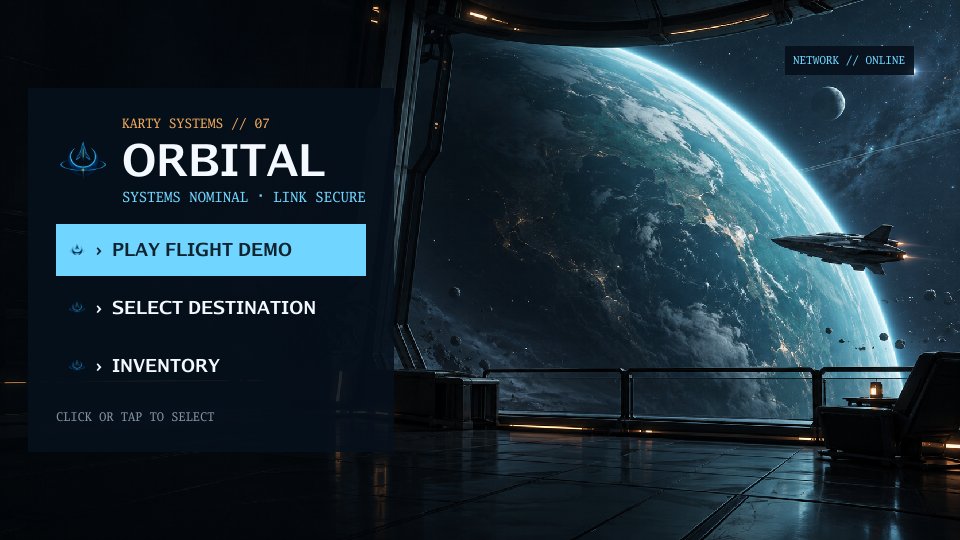
Layouts share structure and styles. Component callbacks change game state. Packages can also export .kui components/layouts, images, fonts and theme defaults through karty-package.toml. Import a folder or .kpkg with karty package import; compose its exported components with the same typed props and callbacks. The consuming game retains its own root, state and theme overrides. Use prefixed component/props names to avoid shared Go-scope collisions. Call Invalidate() after changing data used by dynamic UI bindings. Test your layout at a narrow viewport before adding more screens. Orbital flight deck shows menus, loading, inventory, gameplay, and pause screens.
Build and share
Use --target web for browsers and --target native for desktop games. The supported game runtimes are:
Scroll to see all columns.
| Game platform | --platform |
|---|---|
| Browser | Omit this flag |
| Linux x64 | linux-amd64 |
| Linux ARM64 | linux-arm64 |
| macOS Apple silicon | darwin-arm64 |
| Windows x64 | windows-amd64 |
| Windows ARM64 | windows-arm64 |
Every supported development machine can package any listed game platform. The CLI compiles one WASM cartridge and downloads the destination's checksum-verified host. Players need neither the CLI nor TinyGo.
Publish a browser game
From your project's folder:
karty build --target web
karty serve dist/web --addr 127.0.0.1:8080
Open http://127.0.0.1:8080/ and test the built game. Upload the whole dist/web/ directory to a static host, including content/ when present. Use HTTP hosting; opening index.html directly is not the preview workflow.
Build and run a native game
Build for your current machine, then launch it on Linux or macOS:
karty build --target native
cd dist/native
./karty-host --cartridge game.kart
On Windows, run .\karty-host.exe --cartridge game.kart in PowerShell from dist/native/. The build summary prints the command for your machine.
To package another platform, run these from the project root:
karty build --target native --platform windows-arm64
karty build --target native --platform linux-arm64
karty build --target native --platform darwin-arm64
Explicit platforms use separate folders, such as dist/native/windows-arm64/. On the destination Windows machine, open that folder and run .\karty-host.exe --cartridge game.kart.
Keep a LICENSES/ folder in your project containing Karty's runtime and library notices from the release downloads, plus notices required by your own assets and dependencies. Commit this folder with your source. Copy it into each distribution before sharing:
cp -R LICENSES dist/web/
cp -R LICENSES dist/native/
For a named native platform, use its output folder instead, such as cp -R LICENSES dist/native/windows-arm64/. Share the whole selected folder, including its content/ and LICENSES/ files. Browser and desktop use the same source. Test each platform you ship.
Share reusable code, prefabs and UI
To publish your own package, follow Write and publish a package.
Install published code and assets from the Plugins catalog by name:
karty package import fps-kit@0.0.1
Omit the version to select the latest stable release. Commit the resolved archive URL and SHA-256 in karty.toml; future builds restore that same pin. Use karty package import --replace fps-kit for an explicit update.
For a package folder containing karty-package.toml, export a local archive:
karty package export --output placeholder-kit-0.1.0.kpkg ../placeholder-kit
From a consuming game, import the archive using the name in its package manifest:
karty package import placeholder-kit-0.1.0.kpkg
Commit the referenced archive and updated karty.toml/go.mod; the CLI restores its checked contents under ignored .karty/packages/. To edit the package live, use karty package import --replace ../placeholder-kit instead. karty dev watches that working folder, including outside the game. The current package CLI supports Go behavior, static/nested prefabs, PNG world materials and KartUI components/layouts with images, fonts and theme defaults; use a CLI build containing that feature. UI exports compile against the consuming game and keep normal typed props/callbacks. The game owns state and lifecycle.
Build in CI
Commit karty.toml, go.mod, source code, and source assets. Include go.sum when your dependencies create it. The runner recreates .karty/ and dist/; do not commit those folders.
Save this as .github/workflows/game.yml in your game project. It builds a browser game and a Windows ARM64 distribution on Linux, then uploads each folder for review. Include the LICENSES/ folder described above so the artifacts contain the required notices. The workflow installs the latest CLI. No private engine checkout or credentials are needed.
name: Build game
on: [push, pull_request]
permissions:
  contents: read
jobs:
  build:
    runs-on: ubuntu-24.04
    env:
      GOEXPERIMENT: simd
      GOWORK: "off"
    steps:
      - uses: actions/checkout@v7.0.1
        with:
          persist-credentials: false
      - uses: actions/setup-go@v7.0.0
        with:
          go-version: "1.27.3"
          cache: false
      - name: Install Karty
        run: |
          go install github.com/karty-game/karty/cmd/karty@latest
          echo "$(go env GOPATH)/bin" >> "$GITHUB_PATH"
      - name: Prepare material generation
        run: |
          sudo apt-get update
          sudo apt-get install -y --no-install-recommends libegl1 libgl1-mesa-dri
      - name: Build distributions
        run: |
          karty build --target web
          karty build --target native --platform windows-arm64
          cp -R LICENSES dist/web/
          cp -R LICENSES dist/native/windows-arm64/
      - uses: actions/upload-artifact@v7.0.0
        with:
          name: game-web
          path: dist/web/
          if-no-files-found: error
      - uses: actions/upload-artifact@v7.0.0
        with:
          name: game-windows-arm64
          path: dist/native/windows-arm64/
          if-no-files-found: error
Change the native --platform, artifact name, and artifact path together. For Linux or macOS artifacts, upload a tar archive of the folder to preserve the host's executable permission. For offline lighting, add karty render bake before the builds. Material generation uses Mesa software OpenGL when the runner has no GPU; the libraries above provide its EGL backend. Packaging a game in CI does not test its graphics, input, or sound on the destination platform.
Choose a sample to extend:
- The Hangar: a portal loop, detailed materials, baked lights, and a torch.
- Orbital flight deck: menus and reusable KartUI components.
- Media lab: sound, music, and video.
Write and publish a package
Keep your package in its own public GitHub repository. The catalog links to your releases.
Create the repository
Example: your-name/community-props, with the package at the repository root:
community-props/
  karty-package.toml
  README.md
  LICENSE
  textures/crate.png
  screenshots/props.png
README.md: purpose, install command, usage example and screenshot.LICENSE: terms for the code and assets; include any third-party notices.textures/crate.png: an original PNG texture, exported by the manifest below.screenshots/props.png: a preview for the catalog.
Create karty-package.toml:
format_version = 1
name = "community-props"
version = "0.1.0"

[[textures]]
name = "crate"
source = "textures/crate.png"
profile = "environment"
Use a unique package name and a full major.minor.patch version. Source paths are relative to the package root. This exports community-props.crate to games.
Packages can also export Go code (go.mod), prefabs (prefabs), UI ([ui]) and build processors ([[processors]]). See package exports.
Test in a game
From a game project beside the package repository:
karty package import ../community-props
karty dev
Use the exported texture in a level and check the result.
Publish a release
From the package repository root:
mkdir -p dist
karty package export --output dist/community-props-0.1.0.kpkg .
Keep dist/ out of Git. Commit and push the sources, then create a published GitHub release with:
Scroll to see all columns.
| Field | Value |
|---|---|
| Tag | community-props-v0.1.0 |
| Attached archive | community-props-0.1.0.kpkg |
| Checksum | GitHub's SHA-256 asset digest, or community-props-0.1.0.kpkg.sha256 |
A checksum file contains <sha256> community-props-0.1.0.kpkg on one line; export prints the archive's SHA-256. The manifest, tag and archive versions must match. Use a stable release; drafts and prereleases are excluded from the catalog. Publish a new version for changes; keep existing releases unchanged.
Request a catalog listing
Open an issue in karty-packages titled Add package: community-props. Include the release link, license and this catalog entry, replacing your-name:
{
  "name": "community-props",
  "repository": "your-name/community-props",
  "description": "Prototype crates and materials",
  "tags": ["3d", "prototyping"],
  "source": ".",
  "ref": "main",
  "readme": "README.md",
  "preview": "screenshots/props.png"
}
Maintainers review the request and, if approved, add it to catalog.json. Your sources and releases stay in your repository. After the catalog is published:
karty package import community-props
Later stable releases are discovered during catalog refreshes. Existing users update explicitly with karty package upgrade community-props.
Draw a 2D game
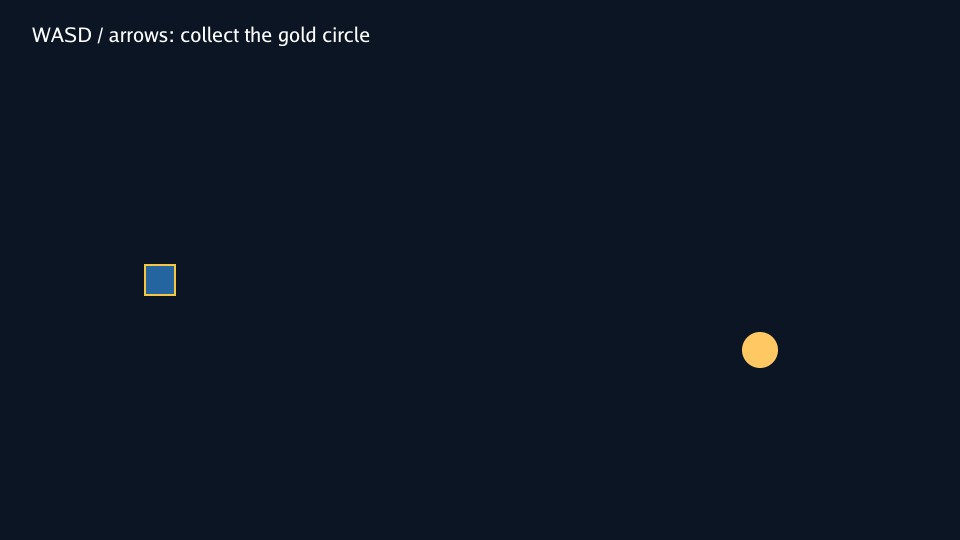
Use sprites for image artwork, vectors for shapes, and text for instructions and scores. This example draws all three and lets you collect a circle with keyboard movement.
Start with the 2d starter, which includes the controllers-topdown plugin:
karty new --yes --template 2d my-game
Keep the package's archive URL and checksum in karty.toml. The first build restores its source under ignored .karty/packages/controllers-topdown/. For an existing project, run karty package import controllers-topdown@0.0.1 first; see reusable packages.
Add a sprite
Create a project from the guide home. Download player.png and save it as assets/textures/player.png. The CLI imports that image and generates assets.TexturePlayer on the next build. Use the generated ID when creating the sprite.

Draw and play
Keep the project resolution at 960 by 540. Replace src/main.go with this scene. Change the imports if your project has a different name.
package main

import (
    "github.com/karty-game/controllers-topdown"
    "example.com/my-game/.karty/assets"
    "example.com/my-game/.karty/engine"
)

const speed = 180 // logical pixels per second

type Game struct {
    engine.Game
    player *engine.Sprite2D
    goal *engine.Shape2D
    label *engine.Text2D
    controller *controllers.Planar
    won bool
}

//go:wasmexport karty_register
func main() {
    options := controllers.DefaultTopDown2DOptions()
    options.Speed, options.RunSpeed = speed, speed
    controller, err := controllers.NewTopDown2D(options)
    if err != nil { panic(err) }
    game := &Game{controller: controller}
    engine.Run(engine.Hooks{
        OnStart: game.start,
        OnUpdate: game.update,
        OnKeyDown: func(key engine.Key) { game.key(key, true) },
        OnKeyUp: func(key engine.Key) { game.key(key, false) },
        OnInputReset: game.controller.Reset,
    })
}

func (game *Game) start() {
    // Draw the background behind the sprite, goal, and text.
    background := game.NewShape2D(engine.Rectangle(960, 540), engine.NewVec2(0, 0))
    background.SetFill(engine.RGBA(12, 21, 35, 255))
    background.SetLayer(-1)
    game.player = game.NewSprite2D(assets.TexturePlayer, engine.NewVec2(160, 280))
    game.goal = game.NewShape2D(engine.Circle(18), engine.NewVec2(760, 350))
    game.goal.SetFill(engine.RGBA(255, 200, 99, 255))
    game.label = game.NewText2D("WASD / arrows: collect the gold circle", engine.NewVec2(32, 24))
    game.label.SetFontSize(20)
    game.label.SetLayer(1)
}

func (game *Game) key(key engine.Key, down bool) {
    if key == engine.KeyR && down {
        game.controller.Reset()
        game.won = false
        game.player.Translate(160-game.player.Position().X, 280-game.player.Position().Y)
        game.goal.SetAlpha(1)
        game.label.SetText("WASD / arrows: collect the gold circle")
    }
    if control, ok := movementKey(key); ok { game.controller.Key(control, down) }
}

func (game *Game) update(engine.Frame) {
    if game.won { return }
    delta := game.controller.Step(controllers.Vec2{X: float64(game.player.Position().X), Y: float64(game.player.Position().Y)})
    dx, dy := float32(delta.X), float32(delta.Y)
    if dx != 0 || dy != 0 {
        x := min(max(game.player.Position().X+dx, 16), 944)
        y := min(max(game.player.Position().Y+dy, 80), 524)
        game.player.Translate(x-game.player.Position().X, y-game.player.Position().Y)
    }
    // Our game collects the goal within 32 pixels of its centre.
    dx = game.player.Position().X - game.goal.Position().X
    dy = game.player.Position().Y - game.goal.Position().Y
    if dx*dx + dy*dy < 32*32 {
        game.won = true
        game.goal.SetAlpha(0)
        game.label.SetText("Collected! Press R to restart")
    }
}
func movementKey(key engine.Key) (controllers.Control, bool) {
	switch key {
	case engine.KeyW: return controllers.Forward, true
	case engine.KeyS: return controllers.Backward, true
	case engine.KeyA: return controllers.Left, true
	case engine.KeyD: return controllers.Right, true
	case engine.KeyArrowUp: return controllers.ForwardAlt, true
	case engine.KeyArrowDown: return controllers.BackwardAlt, true
	case engine.KeyLeft: return controllers.LeftAlt, true
	case engine.KeyRight: return controllers.RightAlt, true
	case engine.KeyShiftLeft: return controllers.RunLeft, true
	case engine.KeyShiftRight: return controllers.RunRight, true
	}
	return 0, false
}
Run karty dev. Move with WASD or the arrow keys, reach the circle, then press R to try again. OnInputReset clears held keys when the game loses focus. The preset normalizes diagonal input and converts speed = 180 pixels per second into three pixels per fixed 60 Hz update. Camera following, pointer targets and zoom are available on the same preset when your game needs them.
Change the drawing
Positions use canvas pixels. The upper left is (0, 0); X grows right and Y grows down. Sprite and circle positions mark their centres. Rectangle and text positions mark their upper-left corners.
NewSprite2D draws the imported image. NewShape2D draws the rectangle and circle without image files. NewText2D draws the instruction, and SetText changes it when the goal is collected. Higher layers draw above lower ones.
Try another PNG, change the circle's radius or color, or move the goal. Use setters such as Translate, SetFill, and SetText to update existing entities instead of creating them again each frame.
Add feedback and share
Sound and video add effects or music. Build and share packages your game for the browser or desktop.
KartUI is optional when you need menus or reusable screen layouts. Its components work with both 2D and 3D games.
Make a first-person game
Create a camera and attach the controllers-3d package's first-person component. It supplies walking, running, mouse look, two visible touch sticks, a physics body, gravity and collision. Keep game hooks for your own interactions and objectives.
karty new --yes --template fps my-game
cd my-game
karty dev
The starter references an independently released FPS Kit archive by HTTPS URL and SHA-256 in karty.toml. Its first build downloads and verifies the package under .karty/packages/fps-kit; later builds can reuse the verified cache offline. A four-metre corridor, two metres wide, connects two eight-metre rooms. They use the kit’s 256px grid, brick and concrete materials. Three crates have static collision; two are spawned with dynamic box bodies so you can push them. Keep the pinned package declaration in Git. Material normal/height/AO maps are generated during the ordinary build. Room numbers, a floor arrow and a tagged goal star demonstrate the package's transparent decals for temporary goals and points of interest. The starter also includes controllers-3d for player movement and mobile controls. The CLI reads [level].name from levels/*/level.toml to generate typed references such as assets.LevelRoom. The callback passed to LoadLevel receives that request's ready result; loading errors still arrive through OnLevelFailed.
Make the camera playable
The complete src/main.go below attaches the controller after the room is ready. Change its module import if your project has a different name. Keep the viewport and project resolution at 960 by 540.
package main

import (
	"example.com/my-game/.karty/assets"
	"example.com/my-game/.karty/engine"
	fpscontroller "example.com/my-game/.karty/processed/code/controllers-3d.sdk/controller"
)

type Game struct {
	engine.Game
	label *engine.Text2D
}

//go:wasmexport karty_register
func main() {
	game := &Game{}
	engine.Run(engine.Hooks{
		OnStart: game.start, OnLevelFailed: game.failed,
	})
}

func (game *Game) start() {
	game.label = game.NewText2D("Loading room...", engine.NewVec2(24, 24))
	game.LoadLevel(assets.LevelRoom, game.ready)
}

// The mounted room supplies the world that will resolve player collisions.
func (game *Game) ready(event engine.LevelReady) {
	camera := game.NewCamera3D(event.Handle, engine.Camera3DSettings{
		Projection:  engine.CameraProjectionPerspective,
		Output:      engine.CameraOutputFull,
		Position:    engine.NewVec3(2, 2, 1.7),
		VerticalFOV: 1.05, NearClip: 0.05, FarClip: 100, OrthoHeight: 10,
		ViewportWidth: 960, ViewportHeight: 540,
	})
	camera.SetLayer(-1)
	options := fpscontroller.DefaultFirstPersonOptions()
	options.Speed = 2.4 // metres per second
	if _, err := fpscontroller.AttachFirstPerson(game.Game, camera, options); err != nil {
		game.label.SetText("Could not create player: " + err.Error())
		return
	}
	game.label.SetText("WASD / arrows: walk | Shift: run | click: mouse look | touch: move and look")
}

func (game *Game) failed(event engine.LevelFailed) {
	game.label.SetText(event.Diagnostic)
}
WASD/arrows walk, Shift runs, and Q/E turn. Click to capture mouse look; Escape releases it. Touch the lower-left side to walk and lower-right to look. The package draws the sticks on first touch and clears held controls on focus loss or modal input capture. It moves the player before your OnUpdate hook, using the last host-accepted pose and preserving falling momentum.
The game owns the camera; destroying it also closes its controller. Level release and cartridge shutdown clean up the controller's body and touch display. Keep the returned controller when you need SetEnabled, Teleport or Close; only one local first-person controller can be attached at a time.
Start with the default options, then tune speed, sensitivity or Touch appearance. Custom BeforeMove and Move callbacks can add authored traversal or swimming. Hangar uses the shared capsule motor for stairs; Terrain adds swimming without another input adapter. The installed .karty/packages/controllers-3d/ README and component documentation contain the complete contract.
Extend the game with textures, prefabs, lighting and interactions, then share a build.
The interaction guide uses E by default. Use F for interactions here, or set options.TurnKeys = false before wiring the interaction hook.
Make an isometric game
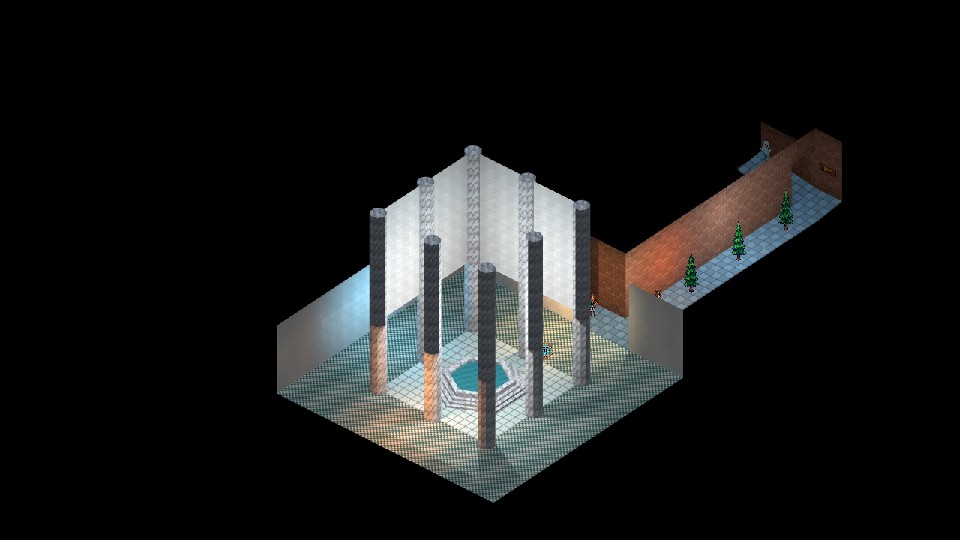
The preset combines camera-relative player movement, following and zoom. The game owns its player entity and movement bounds. This example uses a visible solid marker in an empty eight-metre room; add navigation or physics when introducing obstacles. Q/E zoom the view.
Create an isometric game:
karty new --yes --template isometric my-game
cd my-game
karty dev
The starter pins the controllers-isometric plugin's archive and checksum in karty.toml. The first build restores its source under ignored .karty/packages/controllers-isometric/; keep the declaration in Git. For an existing project, run karty package import controllers-isometric@0.0.1; see reusable packages. Use the room and material files from one room; the isometric starter also supplies its player solid prefab in world.yaml.
Connect the isometric preset
The complete src/main.go below connects the controller to your game. Change its module imports if your project has a different name. Keep the viewport and project resolution at 960 by 540. Constructors validate their options; Reset clears held controls when focus changes.
package main

import (
	"github.com/karty-game/controllers-isometric"

	"example.com/my-game/.karty/engine"
)

type Game struct {
	engine.Game
	request    engine.RequestID
	camera     *engine.Camera3D
	label      *engine.Text2D
	controller *controllers.Planar
	player     *engine.Solid3D
	focus      controllers.Vec2
	isoReady   bool
}

//go:wasmexport karty_register
func main() {
	controller, err := controllers.NewIsometric(controllers.DefaultIsometricOptions())
	if err != nil {
		panic(err)
	}
	game := &Game{controller: controller, focus: controllers.Vec2{X: 4, Y: 4}}
	engine.Run(engine.Hooks{
		OnUpdate:     func(engine.Frame) { game.updateIsometric() },
		OnKeyDown:    func(key engine.Key) { game.keyIsometric(key, true) },
		OnKeyUp:      func(key engine.Key) { game.keyIsometric(key, false) },
		OnInputReset: game.resetIsometric,

		OnStart: func() {
			game.label = game.NewText2D("Loading room...", engine.NewVec2(24, 24))
			game.request = game.RequestLevel("levels.room")
		},
		OnLevelReady: func(event engine.LevelReady) {
			if event.RequestID != game.request {
				return
			}
			options := game.controller.Options()
			position := game.controller.CameraPosition(game.focus)
			game.camera = game.NewCamera3D(event.Handle, engine.Camera3DSettings{
				Projection: engine.CameraProjectionIsometric,
				Output:     engine.CameraOutputFull,
				Position:   engine.NewVec3(float32(position.X), float32(position.Y), float32(position.Z)),
				Yaw:        float32(options.Yaw), Pitch: float32(options.Pitch),
				VerticalFOV: 1.05, OrthoHeight: float32(options.Zoom),
				NearClip: 0.05, FarClip: 100,
				ViewportWidth: 960, ViewportHeight: 540,
			})
			game.camera.SetLayer(-1)

			game.player = game.NewSolid3D(event.Handle, engine.NewTransform3D(engine.NewVec3(4, 4, 0)), engine.SolidRenderer{Prefab: "player"})

			game.isoReady = true

			game.label.SetText("WASD / arrows: move | Shift: run | Q/E: zoom")
		},
		OnLevelFailed: func(event engine.LevelFailed) {
			if event.RequestID == game.request {
				game.label.SetText(event.Diagnostic)
			}
		},
	})
}

func (game *Game) keyIsometric(key engine.Key, down bool) {
	if control, ok := movementKey(key); ok {
		game.controller.Key(control, down)
		return
	}
	if !down || game.camera == nil {
		return
	}
	factor := 1.0
	if key == engine.KeyQ {
		factor = 1.1
	}
	if key == engine.KeyE {
		factor = 1 / 1.1
	}
	if factor != 1 {
		settings := game.camera.Settings()
		settings.OrthoHeight = float32(game.controller.ZoomBy(factor))
		game.camera.SetSettings(settings)
	}
}

func (game *Game) resetIsometric() { game.controller.Reset() }

func (game *Game) updateIsometric() {
	if game.camera == nil || !game.isoReady {
		return
	}
	// Follow only the host-accepted actor position, never an unaccepted proposal.
	pose := game.player.Transform()
	accepted := controllers.Vec2{X: float64(pose.Position.X), Y: float64(pose.Position.Y)}
	delta := game.controller.Step(accepted)
	// This starter owns an empty 8m room; replace its bounds with navigation
	// or a physics body when adding obstacles, stairs or uneven terrain.
	x := max(.3, min(7.7, accepted.X+delta.X))
	y := max(.3, min(7.7, accepted.Y+delta.Y))
	if x != accepted.X || y != accepted.Y {
		pose.Position.X, pose.Position.Y = float32(x), float32(y)
		if err := game.player.Ref().SetPose(pose); err != nil { panic(err) }
	}
	game.focus = game.controller.Follow(game.focus, accepted, false)
	position := game.controller.CameraPosition(game.focus)
	settings := game.camera.Settings()
	settings.Position = engine.NewVec3(float32(position.X), float32(position.Y), float32(position.Z))
	game.camera.SetSettings(settings)
}

func movementKey(key engine.Key) (controllers.Control, bool) {
	switch key {
	case engine.KeyW:
		return controllers.Forward, true
	case engine.KeyS:
		return controllers.Backward, true
	case engine.KeyA:
		return controllers.Left, true
	case engine.KeyD:
		return controllers.Right, true
	case engine.KeyArrowUp:
		return controllers.ForwardAlt, true
	case engine.KeyArrowDown:
		return controllers.BackwardAlt, true
	case engine.KeyLeft:
		return controllers.LeftAlt, true
	case engine.KeyRight:
		return controllers.RightAlt, true
	case engine.KeyShiftLeft:
		return controllers.RunLeft, true
	case engine.KeyShiftRight:
		return controllers.RunRight, true
	}
	return 0, false
}
Step proposes movement from the accepted player position. Apply your game constraints; the engine refreshes the accepted pose automatically before the next update. WatchPose adds an optional notification. Follow takes that accepted position. The fixed diagonal camera keeps its angle as the player moves; ZoomBy clamps the visible world height.
Read .karty/packages/controllers-isometric/docs/presets-v1.md after restore for the complete contract, including picking and pointer targets. Extend the game with textures, prefabs, lighting and interactions, then share a build.
The interaction guide uses E by default. Use F for interactions here, or remap this starter's Q/E controls before wiring the interaction hook.