Add sound and video
Put a short WAV effect in assets/sounds/. The CLI converts it to QOA and generates a typed sound ID. Declare music and video in karty.toml:
[[assets.sound]]
name = "ui.click"
source = "assets/sounds/click.wav"

[[assets.sound]]
name = "door.open"
source = "assets/sounds/door/open.wav"

[assets.sound.transform]
channels = "mono"

[[assets.sound]]
name = "reactor.hum"
source = "assets/sounds/reactor/hum.wav"

[assets.sound.transform]
channels = "mono"

[[assets.sound]]
name = "crate.scrape"
source = "assets/sounds/crate/scrape.wav"

[assets.sound.transform]
channels = "mono"

[[assets.music]]
name = "theme"
source = "assets/music/theme.wav"
profile = "music"

[[assets.video]]
name = "intro"
source = "assets/videos/intro.mpg"
Add the generated assets import, then call these methods from a player button or input handler:
func (game *Game) startMedia() {
    game.PlaySound(assets.SoundUiClick)
    game.PlayMusic(assets.MusicTheme, engine.StreamOptions{Loop: true, CrossfadeMS: 500})
    game.PlayVideo(assets.VideoIntro, 300, 130, 360, 180)
}

func (game *Game) stopMedia() {
    game.StopMusic(500)
    game.StopVideo()
}
For my-game, the assets import is example.com/my-game/.karty/assets. Use the generated names in .karty/assets/. Play the click once per action, and start music once when entering a screen or level.
Choose how a sound reaches the player
Use PlaySound for centered interface feedback. Use PlaySoundFrom for a short effect that follows an object, such as a door opening. For a humming reactor or a moving crate's scraping loop, use a sound emitter. Music and environment streams provide a soundtrack or broad ambience; they have no source position.
Spatial playback changes volume with distance and pans between the left and right speakers. Use mono WAV clips so the host can place them in the stereo field. The channels = "mono" transforms above downmix stereo recordings during the build. Keep emitter loops short: they use decoded sound assets, rather than streaming music. Sound assets are limited to 30 seconds and 6 MiB of decoded PCM per clip.
Set the listener and update its direction
For a world game, make the camera the audio receiver. Add math to your imports and this method to the room viewer:
func (game *Game) updateAudioReceiver() {
    if game.camera == nil { return }
    yaw := float64(game.camera.Settings().Yaw)
    game.SetAudioListener(game.camera.Ref(), engine.AudioListenerOptions{
        Right: engine.NewVec2(float32(math.Cos(yaw)), -float32(math.Sin(yaw))),
    })
}
Call game.updateAudioReceiver() after camera creation in the level's ready callback, and from your existing OnUpdate after movement and turning. Set it again when replacing the camera. The receiver follows the camera's world position; its output rectangle on screen does not change where the player hears from.
Right is the world direction of the right speaker. A yaw of zero faces positive Y, so the right direction is (1, 0). The host does not derive this vector from camera yaw: update it as the player turns, or panning will keep the old direction. Camera pitch does not change this horizontal listener basis. For a 2D game, use the player entity as receiver and (1, 0) when positive X should always sound to the right. ClearAudioListener() silences spatial playback until another receiver is set.
Play a positioned one-shot
Pass the existing door entity or resolved engine.EntityRef when the door opens. It must be a live audio entity:
func (game *Game) playDoorSound(door engine.EntityRef) {
    game.PlaySoundFrom(assets.SoundDoorOpen, door, engine.SpatialSoundOptions{
        Volume: 0.8, NearDistance: 1, FarDistance: 12,
    })
}
Call this once per opening, rather than every update. The voice follows the door until the clip ends. NearDistance is the range with no distance reduction; volume fades between near and far, and reaches silence at FarDistance. Use the same units as the entity positions: metres for the world guides, canvas coordinates for 2D entities. Set volume explicitly; zero is silent. Use finite values, volume in [0, 4], a nonnegative near distance, and a far distance greater than near.
PlaySoundFrom uses XY distance. Z height, walls and doors do not obstruct this one-shot API. Use an emitter with Loop: false when a short effect needs XYZ distance or collision obstruction.
Place a looping sound in the world
Create this emitter once from the level's ready callback, using event.Handle for the mounted level. See .karty/docs/audio-emitters.md for the complete options:
func (game *Game) startReactorSound(level engine.LevelHandle) *engine.SoundEmitter {
    return game.NewSoundEmitter(level, assets.SoundReactorHum,
        engine.NewVec3(6, 6, 1.5), engine.SoundEmitterOptions{
            Volume: 0.6, NearDistance: 2, FarDistance: 16,
            Loop: true, Occlusion: true,
        })
}
Keep the returned handle in Game so you can call SetPosition, SetOptions or Stop. Create it once; creating it every frame starts overlapping voices. Emitters measure XYZ distance, so a source on another floor becomes quieter. They also provide a gentle volume reduction behind the listener. The receiver and emitter must belong to the same mounted level to be audible.
Occlusion: true makes loaded collision geometry muffle the direct path to the listener. Walls and doors need collision to block sound; non-collidable props do not. Place the source outside solid geometry. Sound does not travel around corners, and there is no room reverb or acoustic portal transformation.
For a moving object, attach the sound at creation. Pass a live crate entity or a resolved engine.EntityRef belonging to the same mounted level:
func (game *Game) startCrateSound(level engine.LevelHandle, crate engine.EntityRef) *engine.SoundEmitter {
    return game.NewAttachedSoundEmitter(level, assets.SoundCrateScrape, crate,
        engine.NewVec3(0, 0, 0.3), engine.SoundEmitterOptions{
            Volume: 0.5, NearDistance: 0.5, FarDistance: 9,
            Loop: true, Occlusion: true,
        })
}
The offset uses world axes and follows the source; it does not rotate with the crate. Start the scraping loop when movement begins and stop it when movement ends. Setters preserve playback rather than restarting the clip. SetOptions replaces the options: include the original Loop value, because loop mode cannot change after creation. A stopped handle cannot restart; create a new one.
Level unloading or source destruction stops an emitter. Stop() is also safe to call repeatedly or on a nil handle. Invalid creation arguments return nil; a non-nil handle does not guarantee admission when the host voice budget is full. There are at most 16 persistent emitters within the shared 32-voice sound budget. Keep handles and sound IDs out of save data. The Hangar sample uses reactor hums and attached crate scraping loops.
Check playback and package media
Browser audio needs player input before it can play. Video sources must already be MPEG-1 in an .mpg container, optionally with MP2 audio. The CLI does not convert MP4. One video plays at a time; pause, seeking, and video looping are not supported. The four position values set its top-left and display size.
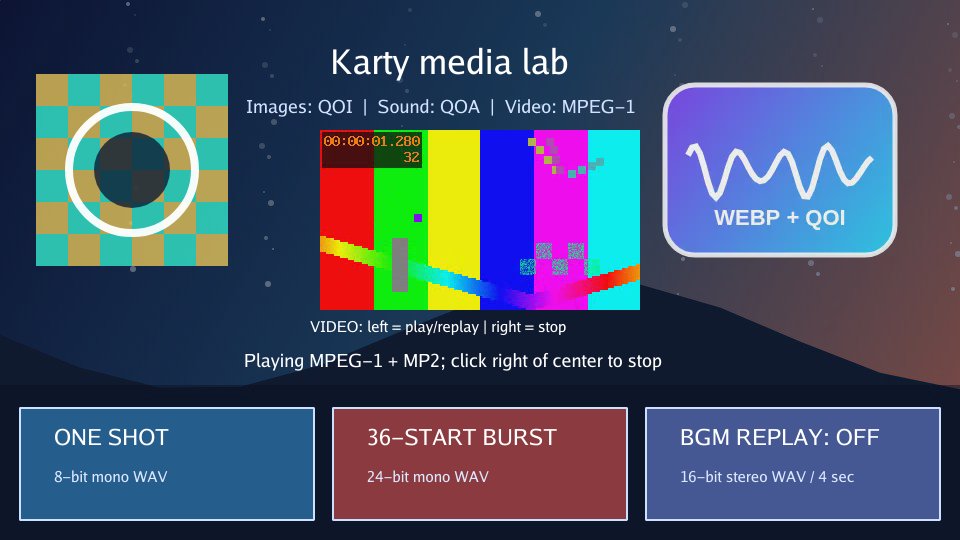
Keep the built content/ folder when sharing music or video. Use Media lab to check playback and overlapping effects.
For a spatial check, click the preview, walk toward and away from a source, then turn with the source beside you. Check that distance changes volume and turning changes the stereo balance. Test an occluded emitter behind a collidable wall. If it is silent, check the receiver, generated sound ID, mounted level, explicit volume and far distance, then look for voice-admission errors in host diagnostics.